If you searched for "CPUZ temperatura" and came up empty inside the app, you're not doing anything wrong — CPUZ simply isn't a temperature tool. The good news: the fix is a free companion app and a thirty-second workflow.
Why CPUZ doesn't show temperature
CPUZ is a system-profiling tool. Its job is to identify your hardware and report live frequency, multiplier and voltage. Thermal sensors are a different category of data, and CPUID deliberately splits that work into a separate utility so each tool stays small and focused.
In other words, CPUZ answers "what is this chip and how fast is it running right now?" — not "how hot is it?"
The right tool for temperatures: HWMonitor
HWMonitor is made by the same developer, CPUID, and it's the natural partner to CPUZ. It reads the thermal sensors on your CPU, motherboard, drives and graphics card and shows minimum, current and maximum values in real time.
- It's free and lightweight, like CPUZ.
- It shows per-core CPU temperatures, not just a single number.
- It tracks the peak temperature reached during a session — useful for spotting spikes.
The two-tool workflow
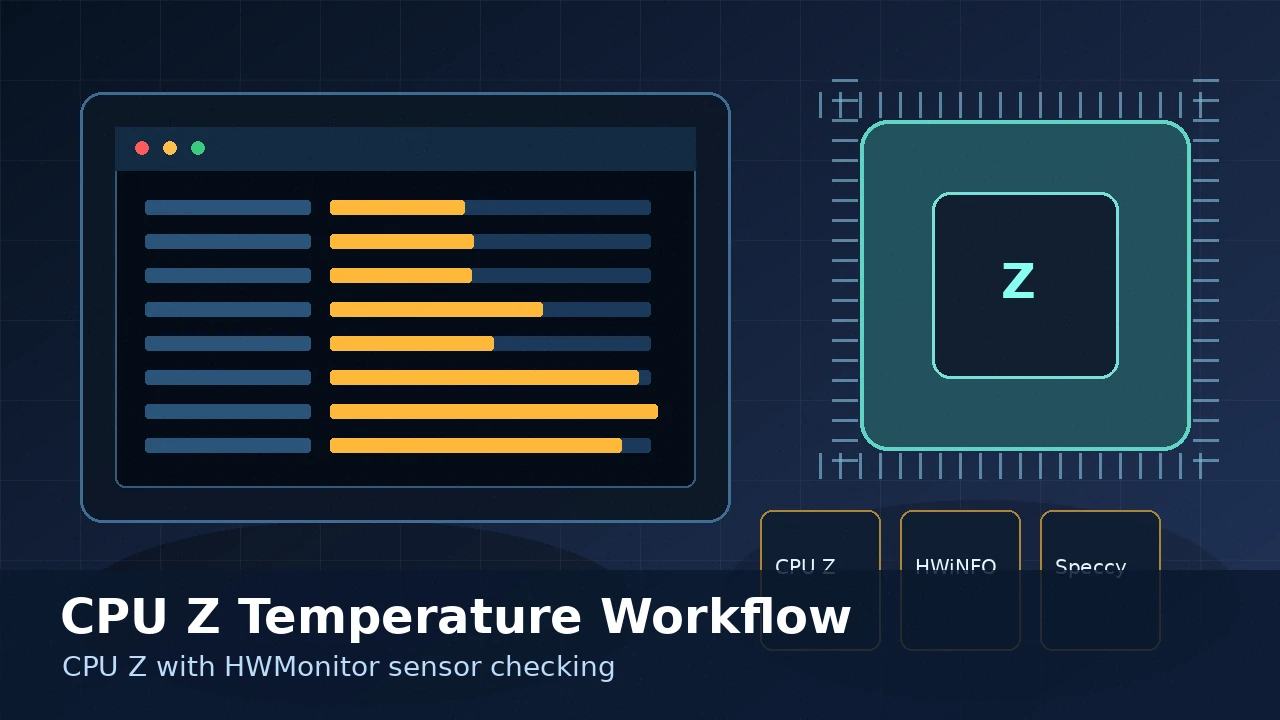
Run them side by side and you get the full picture: CPUZ tells you the clock and voltage; HWMonitor tells you the resulting heat.
- Download and install CPUZ (see our install guide) and HWMonitor from the official CPUID site.
- Open both. Position CPUZ on the CPU tab and HWMonitor next to it.
- Note your idle temperatures with the system at rest.
- Run a workload — a game, a render, or a stress test — and watch how temperature and clock speed move together.
What counts as a healthy temperature?
Exact safe limits vary by processor, but these general ranges hold for most modern desktop and laptop CPUs:
- Idle: roughly 30–45°C in a normally cooled system.
- Under load: commonly 60–85°C depending on the chip and cooler.
- Concern zone: sustained temperatures near the manufacturer's maximum (often around 95–100°C) where the CPU starts throttling.
Brief spikes are normal. What matters is whether temperatures stabilise under sustained load or keep climbing toward the limit.
If you see CPUZ's core speed drop while HWMonitor shows very high temperatures, your CPU is throttling to protect itself. That's your signal to improve cooling.
Why temperatures matter
Heat is the main thing standing between your CPU and its full performance. When a chip gets too hot it reduces its own clock speed, so a poorly cooled PC can feel slower even with powerful parts. Monitoring lets you catch this early — and confirm that an upgrade or cleaning actually helped.
Simple ways to lower CPU temperature
If your numbers look high, work through the cheap fixes first:
- Clear the dust. Clogged heatsinks and fans are the most common cause of rising temps.
- Improve airflow. Make sure case fans are working and intake/exhaust aren't blocked.
- Reapply thermal paste. Paste dries out over years; a fresh application can drop temperatures noticeably.
- Check the cooler mount. A loose or poorly seated cooler causes hot spots.
- Tame an aggressive overclock. If you've been tuning, our overclocking guide explains how clocks and voltage drive heat.
Prefer a single app?
If running two tools feels like a chore, HWiNFO combines deep sensor monitoring (including temperatures) with detailed hardware identification in one window. We compare it with CPUZ and Speccy in our system-info tool showdown.
Start with the basics
Grab CPUZ first, then add HWMonitor for temperatures.
So when someone asks how to see CPU temperature in CPUZ, the honest answer is: you don't — you pair it with HWMonitor. Together they're the classic free toolkit for understanding exactly what your processor is doing and how hot it's getting.
Per-core vs package temperature
Open HWMonitor and you'll often see several CPU temperature figures. The two that matter most are:
- Per-core temperatures: one reading per core, showing which cores run hottest.
- Package temperature: a single value for the whole CPU die — usually the figure people quote.
Use the package temperature for an overall sense of health, and glance at per-core values only if one core spikes unusually high.
Laptops run hotter, and that's usually fine
Thin laptops squeeze powerful chips into tight spaces with small coolers, so they naturally reach higher load temperatures than a roomy desktop. A laptop CPU touching the high 80s or low 90s under heavy load is common and, within the manufacturer's limit, not dangerous. What you don't want is a laptop sitting at those temperatures during light tasks like browsing.
When high temperatures are worth acting on
- Throttling during normal use: if CPUZ shows clocks dropping under everyday load, heat is costing you performance.
- Sudden shutdowns: unexpected power-offs under load can mean the CPU is hitting its thermal limit.
- Constantly loud fans: fans pinned at full speed during light tasks suggest dust or poor airflow.
A note on accuracy
Readings come from the hardware sensors themselves, so occasional odd values — a momentary 0°C or an impossible spike — are glitches, not real temperatures. Trust the steady trend rather than a single flickering number, and cross-check with a second tool like HWiNFO if a value looks suspicious. Our tool comparison explains when to reach for it.
Key takeaways
- CPUZ reports clocks and voltages, not temperatures.
- Pair it with HWMonitor (also by CPUID) to read temps.
- Idle in the 30–45°C range and load under ~85°C is generally healthy.
- Rising temps usually point to dust, dried paste or poor airflow.